Build and Utilize a Personal Knowledge Base
This is no way to live
Transforming data into knowledge with discourse graphs
Many researchers have an established pipeline for accumulating potentially useful evidence and insights, but fewer ways to manage and use these resources.
The discourse graph protocol drives more intentional note-taking and accentuates serendipitous discovery within existing knowledge bases.
Startup
PKM aficionados
If you’re already using Obsidian or Roam Research or another PKM platform, your first question might be “Can I integrate discourse graphs into my existing knowledge base?”
For Roam Research users, the answer is yes. Your discourse nodes can coexist with your existing graph. The Discourse Graph plugin creates an annotation layer that captures relevant content as discourse nodes and integrates it into a graph structure that parallels your existing outline.
Transforming existing notes into discourse nodes
The discourse graph practice of progressive formalization gradually transforms relevant notes, images, and snippets into discourse nodes you can integrate into your graph.
Progressive formalization is the practice of identifying and extracting atomic observations, then iteratively refining them from candidate nodes into full discourse nodes.
For example, the following image depicts a Roam user’s notes on an article from his/her Zotero library, captured as notes on their Daily Notes Page.
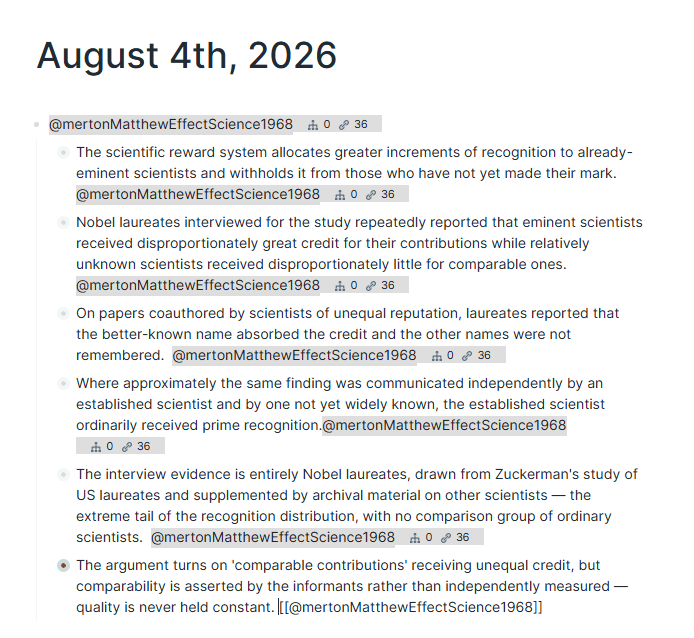
We love the Daily Notes Page, don’t we, folks?
After installing the Discourse Graph plugin, the researcher returns to these notes and marks observations as candidate claims (inferences made from evidence that address a research question), candidate evidence (singular observations made from data), and candidate caveats (a candidate node unique to this researcher’s graph that records observations which complicate a claim or piece of evidence without opposing it). He/she even identifies a candidate question to guide his/her ongoing research.
Some of these notes may have to be tweaked, pruned, or reformulated to fit the atomic discourse node format.
#clm-candidate Extracting discourse nodes from existing notes allows you to bootstrap a discourse graph from existing work
#clm-candidate Extracting discourse nodes from existing notes helps you become comfortable with the discourse graph syntax.
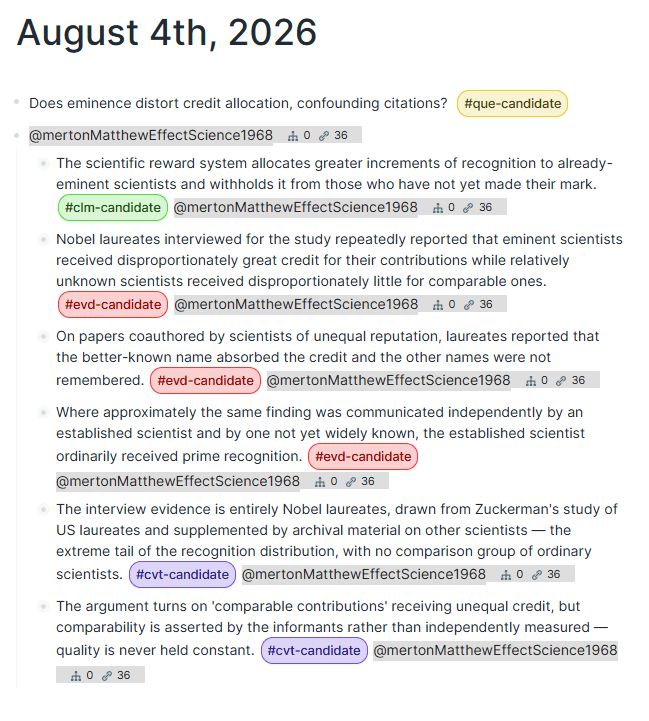
Article notes annotated with candidate nodes
See Tagging candidate nodes for the full rundown on marking and promoting candidate nodes.
Finally, the researcher can promote some candidate nodes to full-fledged discourse nodes. The page below shows a new Question page extracted from notes on Merton’s seminal Matthew Effect in Science paper. Now the researcher orients his/her future reading toward answering this question, and seeks out additional relevant Sources (seen on the Question page below).
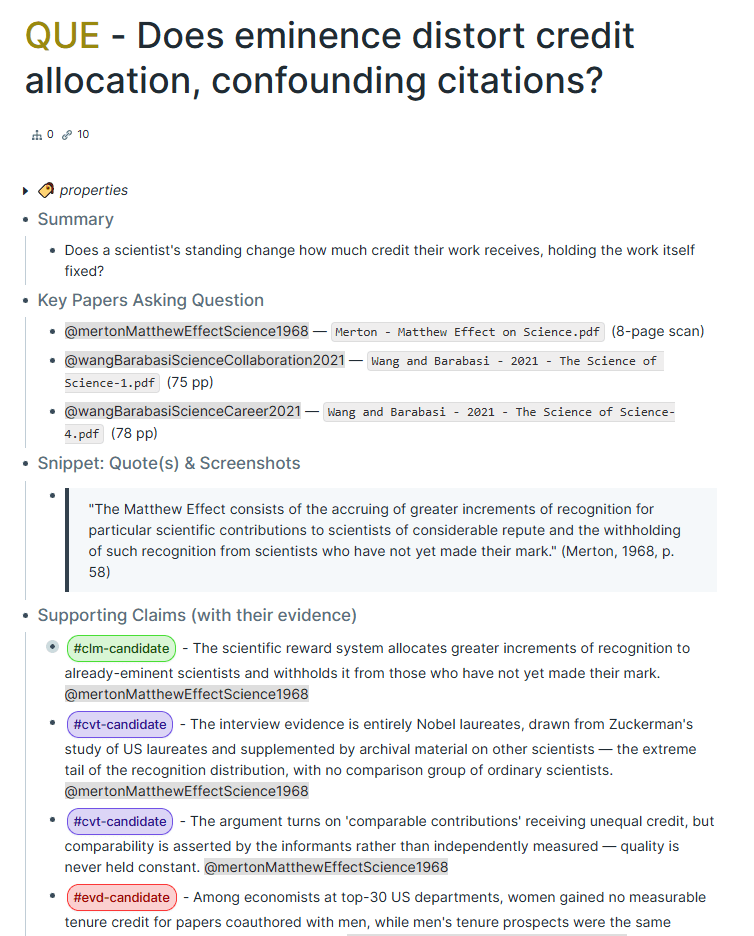
A research project is born.
Best practices for node conversion
The goal of transforming a note into a discourse node is to preserve as much context and information as possible while orienting the content toward the questions animating your research, or at least positioning it so it suggests additional discourse nodes.
First, paraphrase the key insight of the note and record the source of the insight. This paraphrase is your new discourse node. The rest of the note becomes a Source node, where you can retain the remaining note text as additional context for the insight. You might extract several discourse nodes or candidate nodes from a single web-clipped article, but breaking it out into a single DG node + SRC is enough to get started.
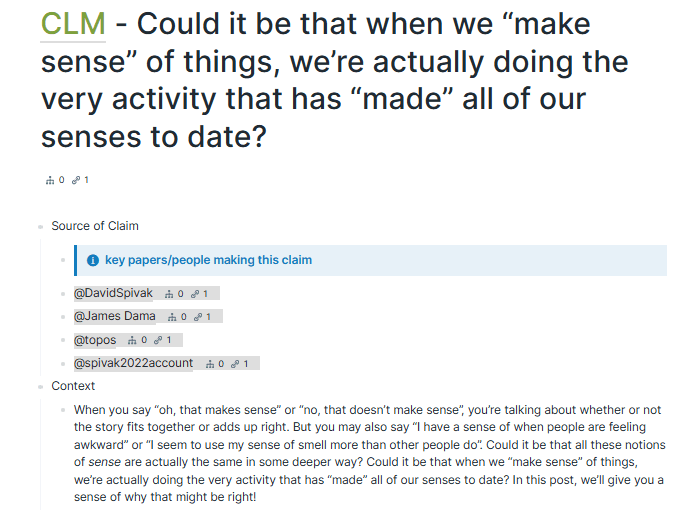
A Claim extracted from an existing note
Adding [[wiki-links]] to key terms keeps your new node in conversation with the rest of your Roam graph. This can help you find appropriate discourse relations later.
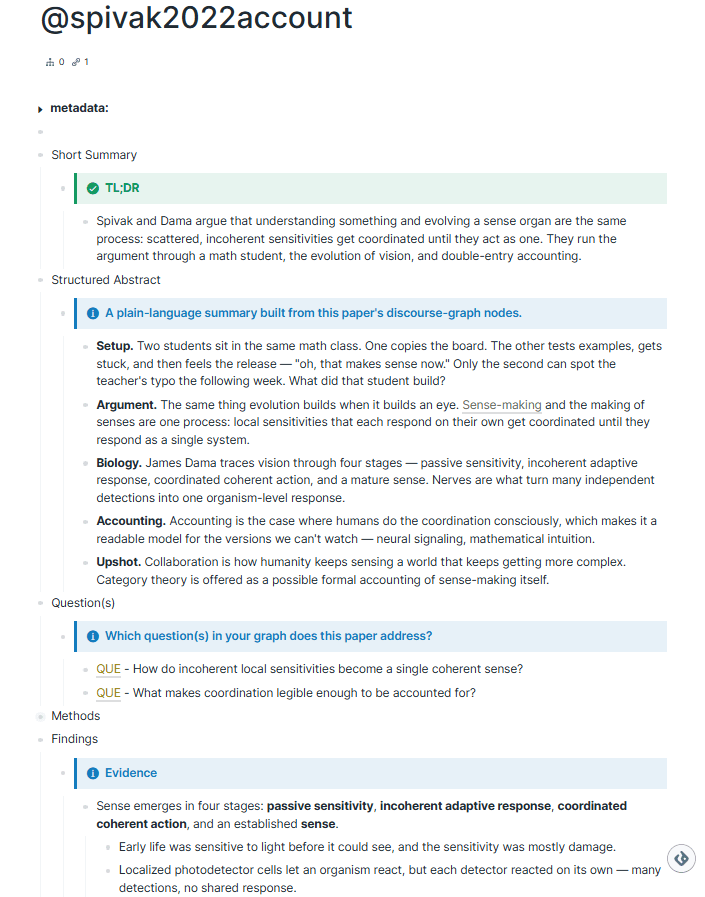
The Source page for the above Claim, containing two further discourse nodes and a wikilink to the rest of the graph
As you go through your existing notes, you might find that certain sources are accumulating multiple mentions in your graph. Identifying especially productive sources can help you to decide how to allocate your attention.
Of course, you may be the author of many of the original notes in your graph. In that case, we suggest retaining the relevant contextual information on the QUE/CLM/EVD node itself, but remember to create a Source node for yourself!

New Roam Research users
Newcomers to Roam Research might experience some blue ocean anxiety: What do I write next to this bullet point? What should be wiki-linked?
Never fear! We have a template graph you can use as a sourdough starter for your own discourse graph, complete with examples and tutorials available for download here .
The discourse canvas: a warm start
Learn how to use the discourse canvas in this tutorial.
We recommend first creating a Discourse Canvas. A canvas lets you organize your ideas visually and cluster related ideas by physical proximity.
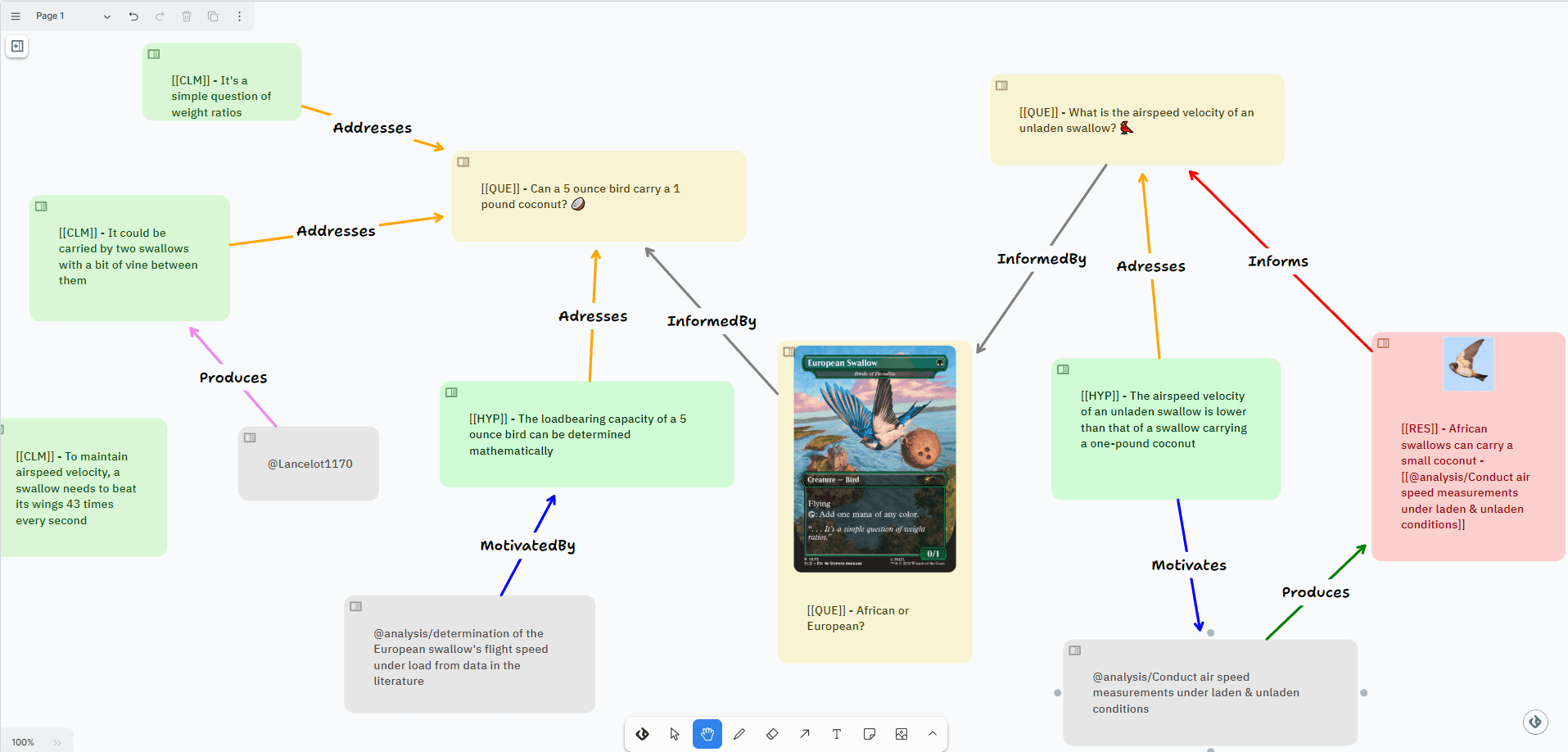
A discourse canvas
Creating discourse nodes on a canvas encourages brevity, spontaneity, and relational thinking, key aspects of Discourse Graph Thought.
You can add further detail (code, figures, text snippets, etc.) to your nodes later in the sidebar or outline view.
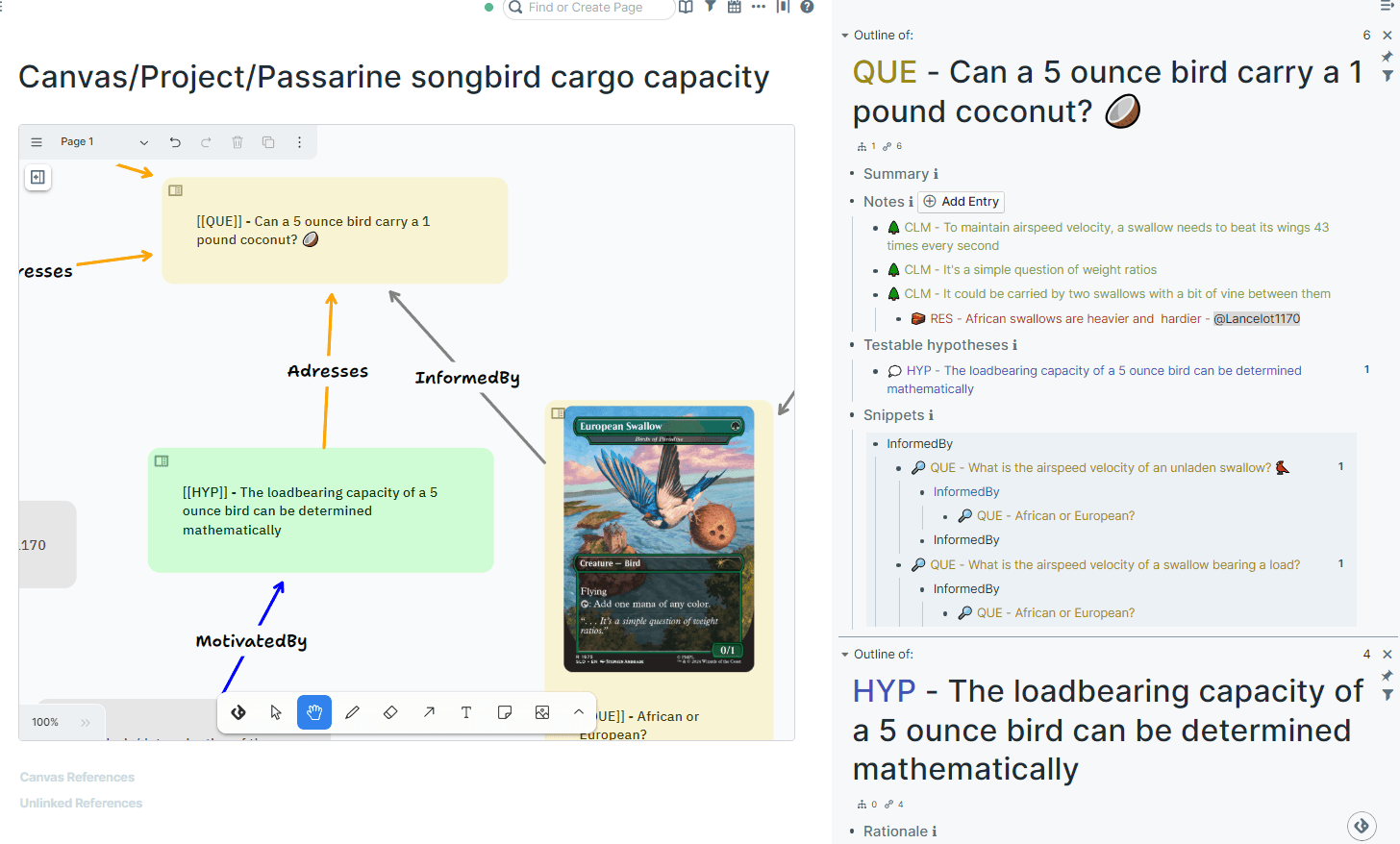
Adding more context to discourse nodes in the sidebar
Your first canvas can seed your entire graph. It is particularly useful to identify key Questions that can direct your research later.
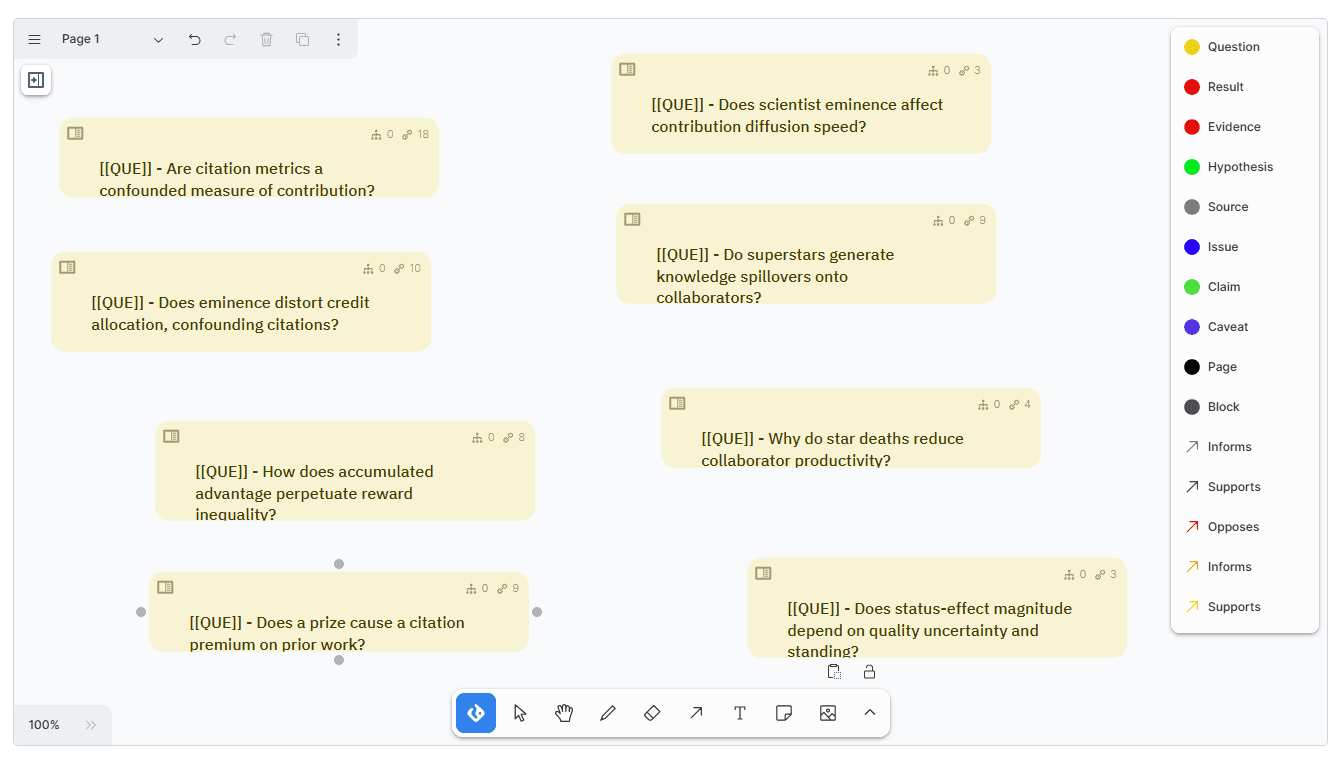
Seeding your graph with questions
Your graph can accommodate multiple unrelated questions. You can explore each question, along with its related Claims, Evidence, and Sources, on a different canvas. Sometimes you may discover unexpected linkages between supposedly unrelated questions. This is the serendipitous discovery a discourse graph enables.
Whether you’re working from your own research results or from the scientific literature, adding images to your canvas is an effective way to build out your graph. These images provide at-a-glance contextualization for the discourse nodes on your canvas and can later be converted into Evidence or Result nodes.
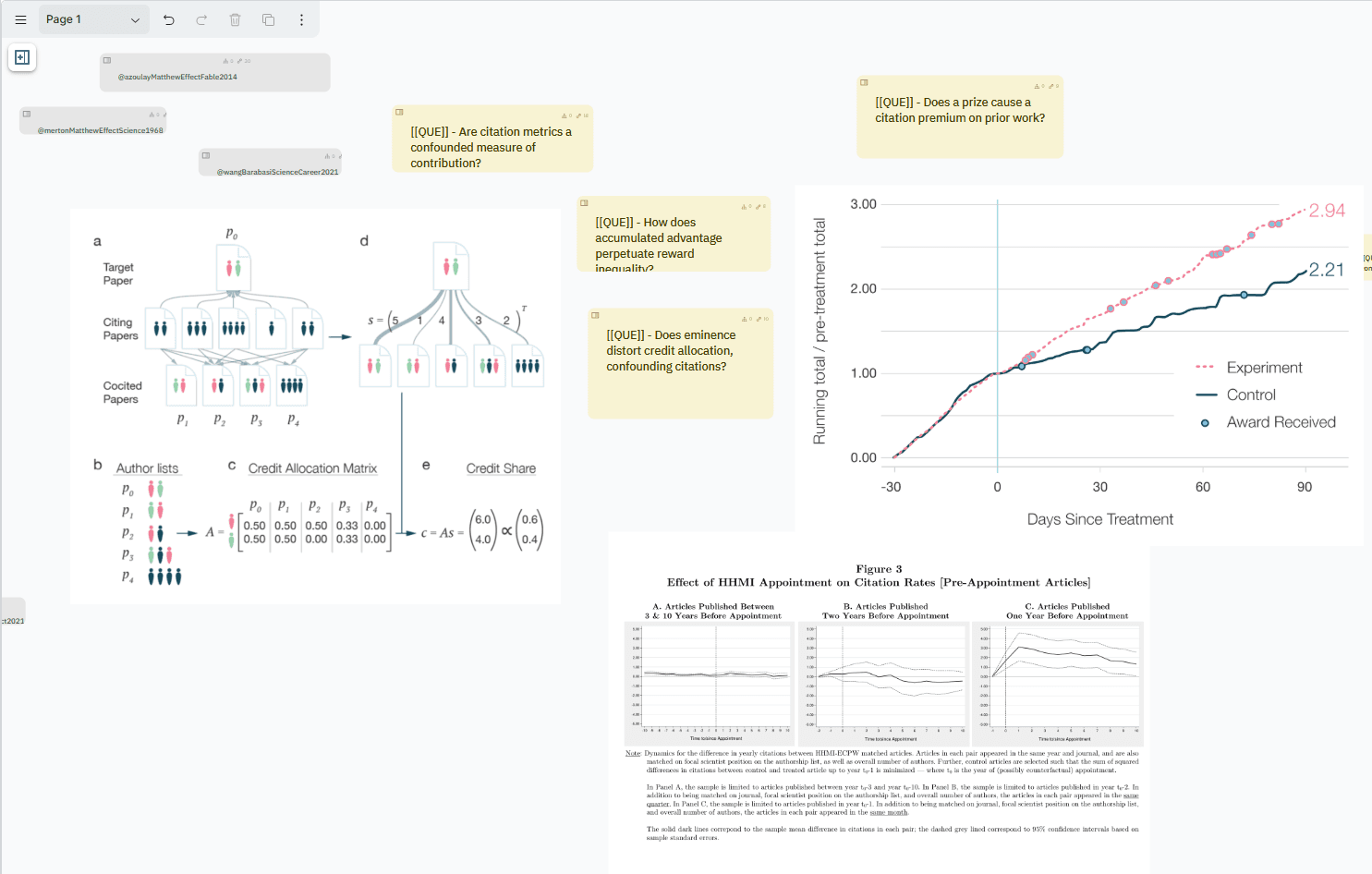
Adding images to your canvas
If you are using a webclipper like Roam highlighter or Memex , you can paste your text highlights directly onto the canvas for later conversion into discourse nodes.
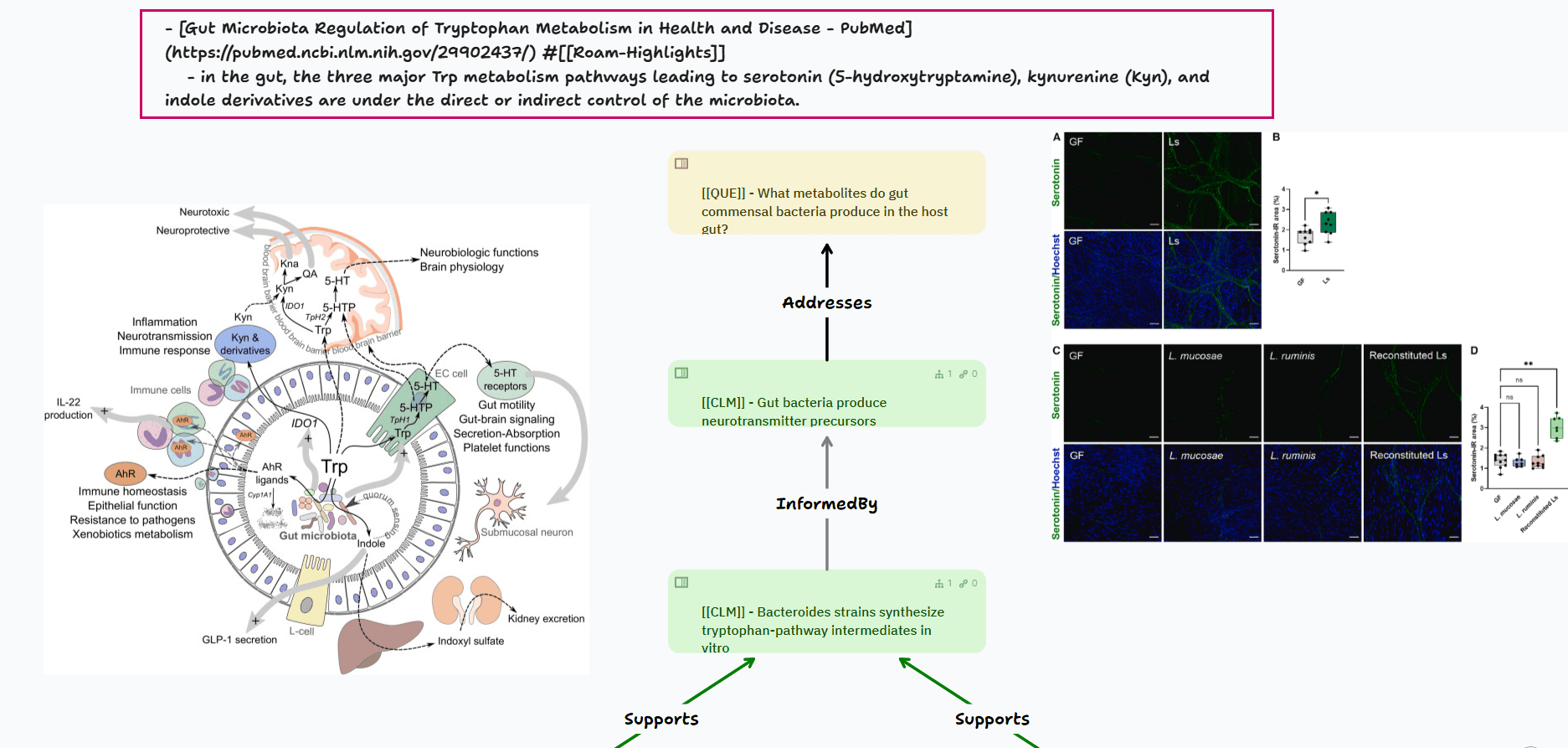
A text snippet from a webclipper added to the canvas (highlighted in magenta)
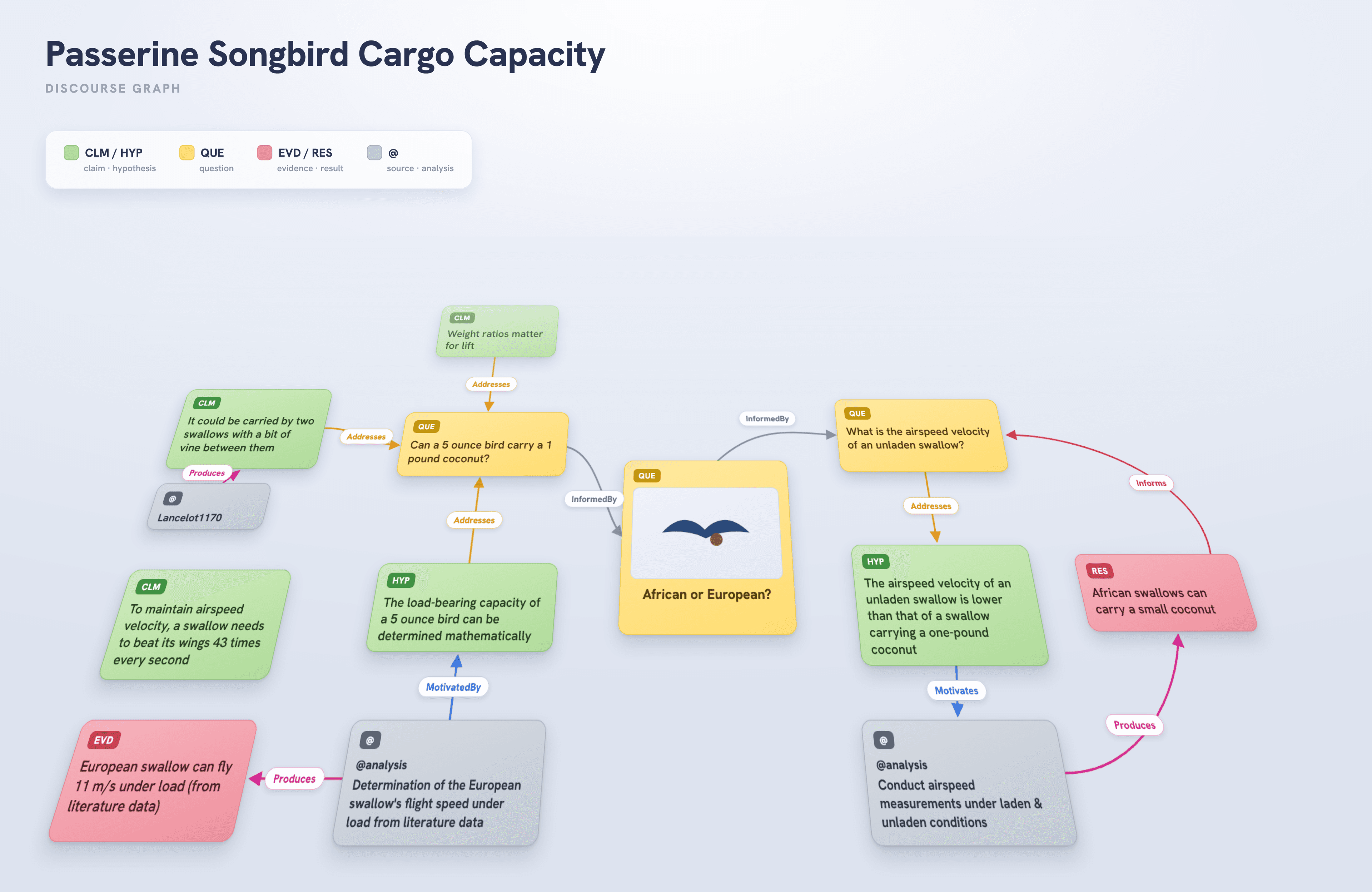
The discourse canvas: so much room for activities!
Creating new discourse nodes
Learn more about creating discourse nodes in this tutorial.
Build out your discourse graph by reading with an eye to capturing information that inspires new questions or is relevant to your current questions.
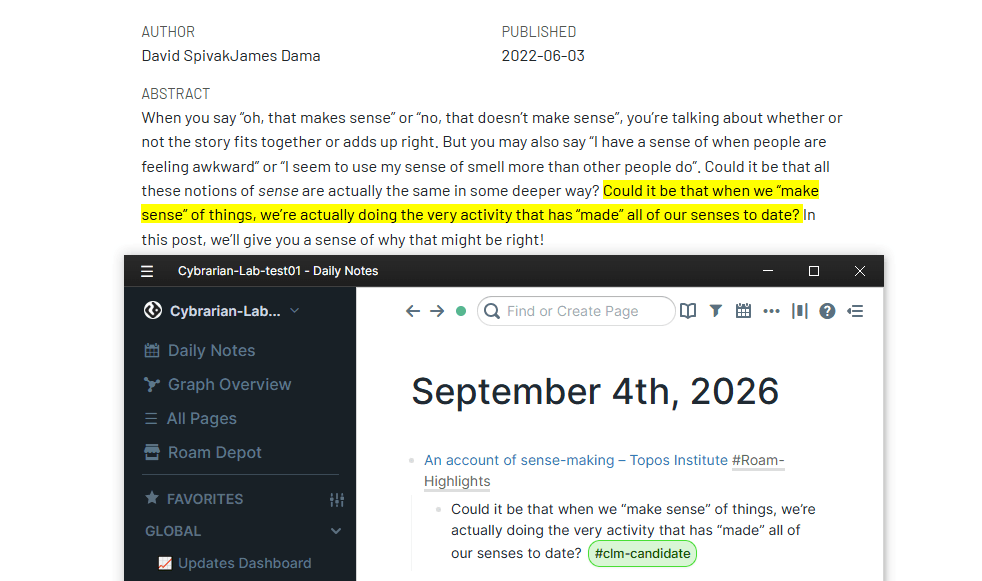
A web highlight captured on a daily notes page as a candidate claim
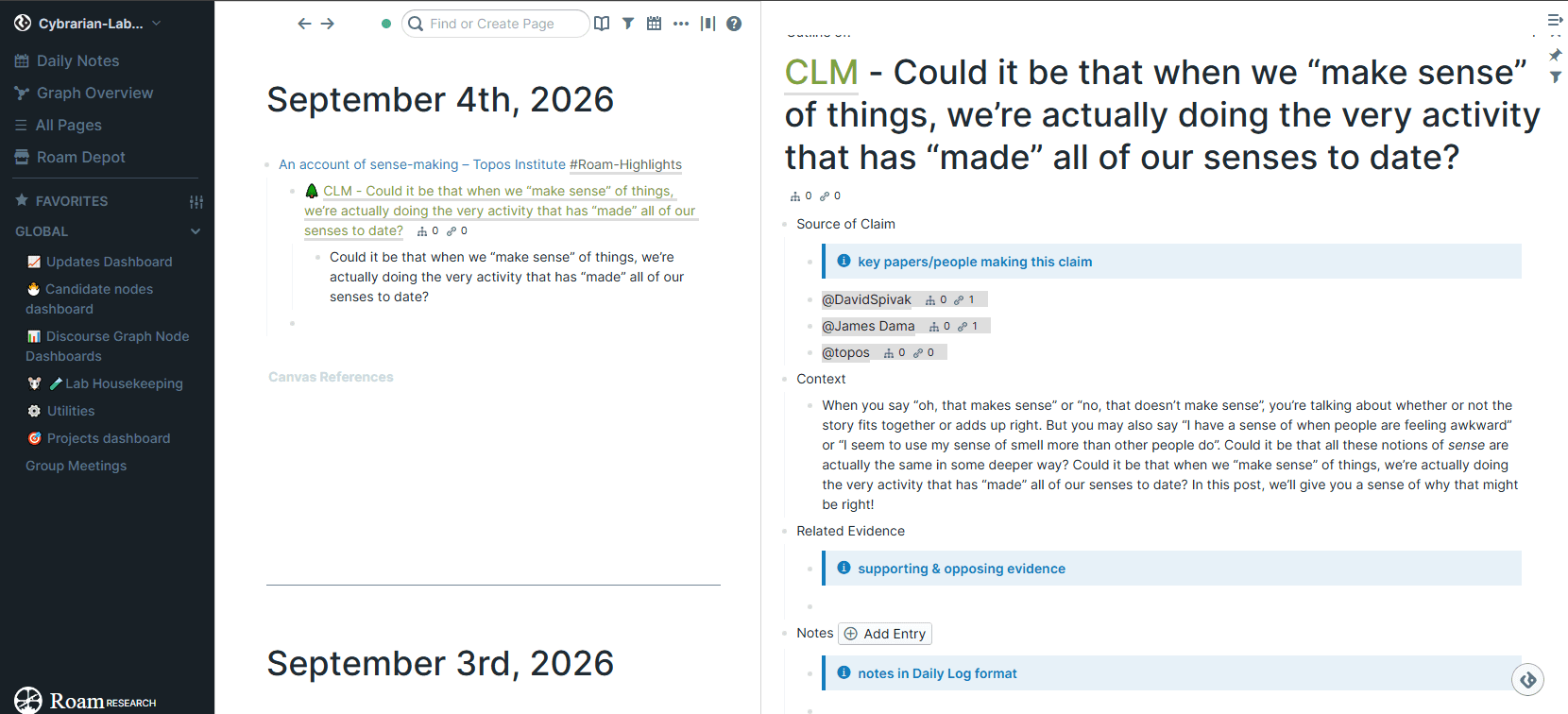
The claim candidate is promoted to a Claim. Additional context can be added to the dg node template, as well as links to sources (here in grey) and evidence supporting the claim
This habit of intentional reading is a great way to nudge yourself toward contributing to the public conversation.

You can also transform the images you add to your canvas into discourse nodes by right-clicking, selecting “convert into,” and choosing the appropriate node type in the pop-up modal.
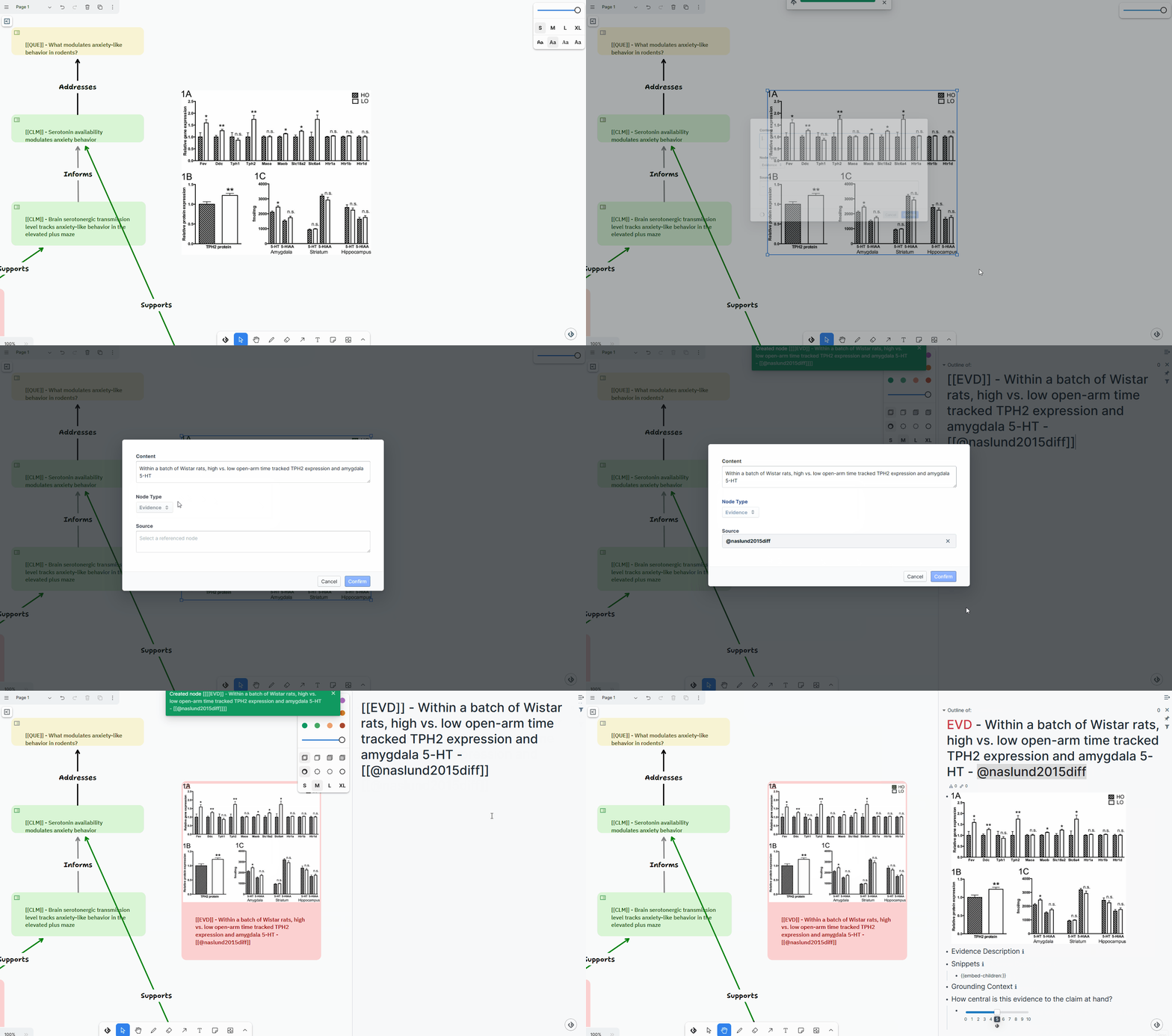
Converting a canvas image into a discourse node
Managing your graph
Organization
Roam Research is an outliner, which means that the basic unit of organization is the block rather than the file. Every bullet point in your graph is an addressable element, which enables powerful search, query, and backlinking functions. The tradeoff is that the software interface can seem daunting to newcomers.
The discourse graph extension includes several features that help you organize your graph, like the extended left sidebar functionality, templates for organizing node data, and a query builder. The tutorial graph uses the recommended Smartblocks extension to add custom template flows for creating project and experiment pages.
One of the strengths of the discourse graph workflow is that the protocol automatically imposes a structure on your notes so that you can devote your attention to synthesis rather than housekeeping. The most effective organizational practice is to make liberal use of candidate node tags and regularly review your notes to see which candidates are ready for promotion, and which new relations you should create between existing nodes.
Searching & querying
The point of creating a discourse graph is not to put stuff into it, it’s to get meaning out of it. You can quickly locate specific content using Searches and Queries.
Searching and indexing tools
Roam provides several native methods of finding content in your graph. The simplest is the search bar atop every page. You can navigate to it directly by pressing Cmd/Ctrl + U.
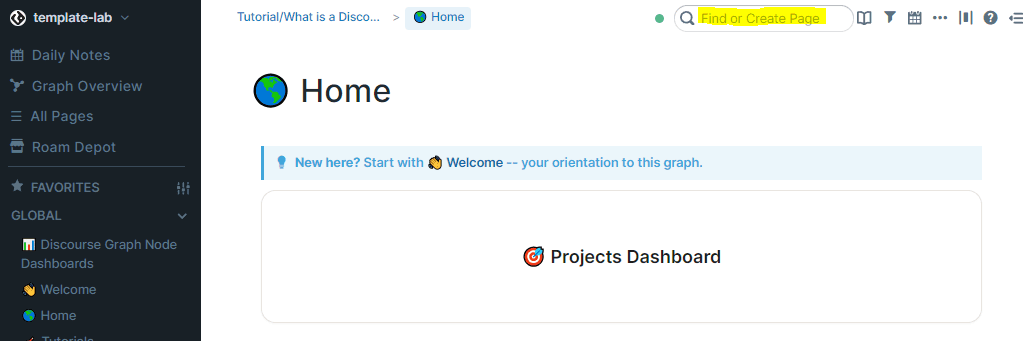
The Roam search bar: find or create pages in your graph
Enabling “better search” in the Settings menu can speed up searches in larger graphs.
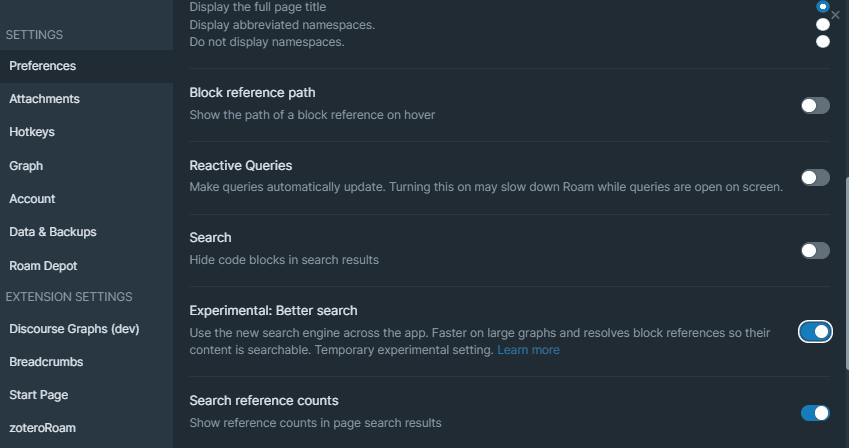
Better search setting
Roam also maintains an index of all of the pages you create in your graph.
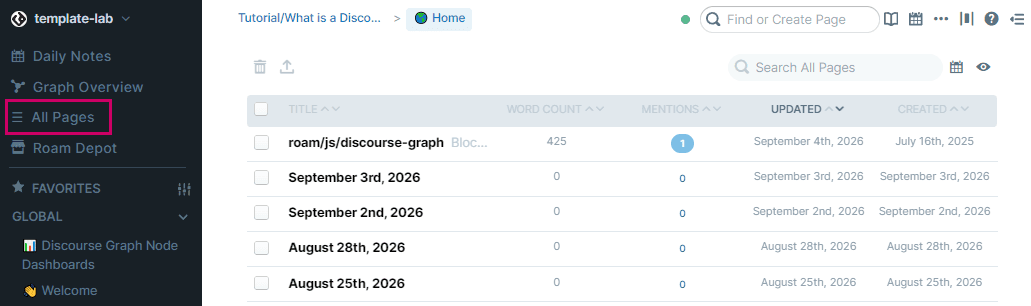
The All Pages index
The administrator of your graph can enable semantic search so that you can search by vibes.
Certain semantic search options can send your data to a third party.
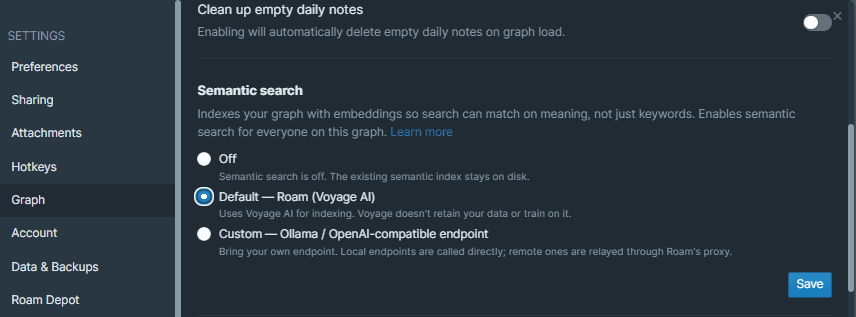
Enabling semantic search in Settings > Graph
Learn more about semantic search here .
Node search
The discourse graph plugin includes its own search tool, which can be triggered by pressing @ to summon a node search modal with filtering options.
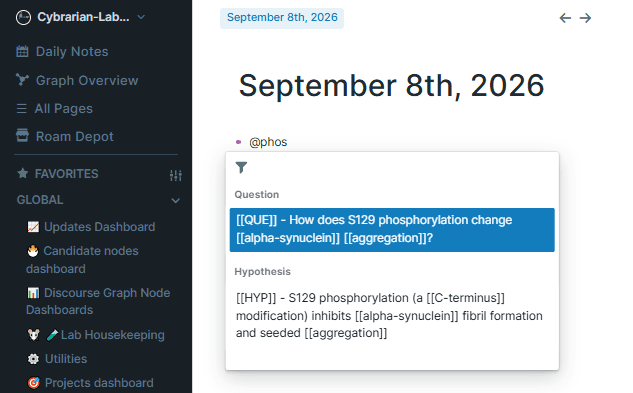
Advanced node search
Advanced node search is a beta feature. Certain semantic search options can send your data to a third party.
The discourse graph plugin includes its own semantic search tool, Advanced node search, which can be enabled via a toggle on the administrator panel. Open discourse graph settings, press Ctrl+Shift+A, and select “Advanced node search.”
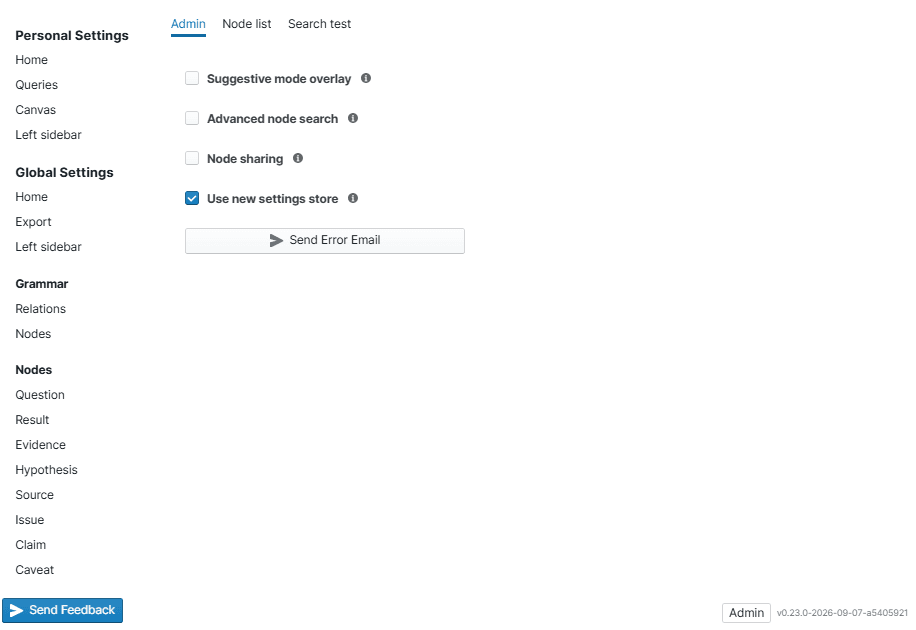
The admin panel, reached from the discourse graph plugin Settings menu
You can set a hotkey to summon the advanced node search menu in the Command Palette. When triggered, it opens the node search modal, which includes previews of results.
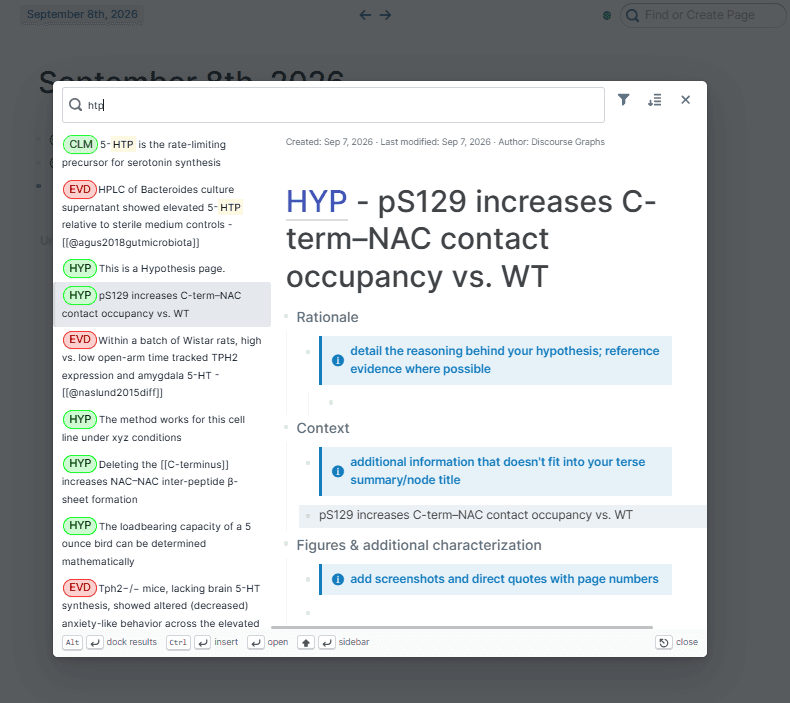
An advanced node search result
Queries
The discourse graph plugin includes a querybuilder component that lets you create and save queries against your graph.
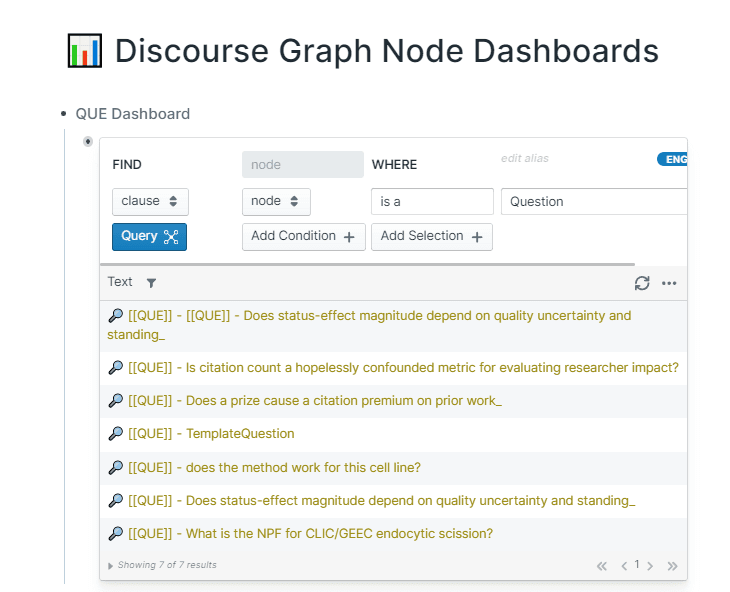
A query returning all Question nodes in a graph
Queries are an effective means of locating nodes and relations that you authored intentionally, as well as surfacing latent connections in your graph. For example, the shared lab graph depicted below contains canvases depicting two different projects in a lab working on α-synuclein: one is a wet-lab experiment, the other uses computer simulations.
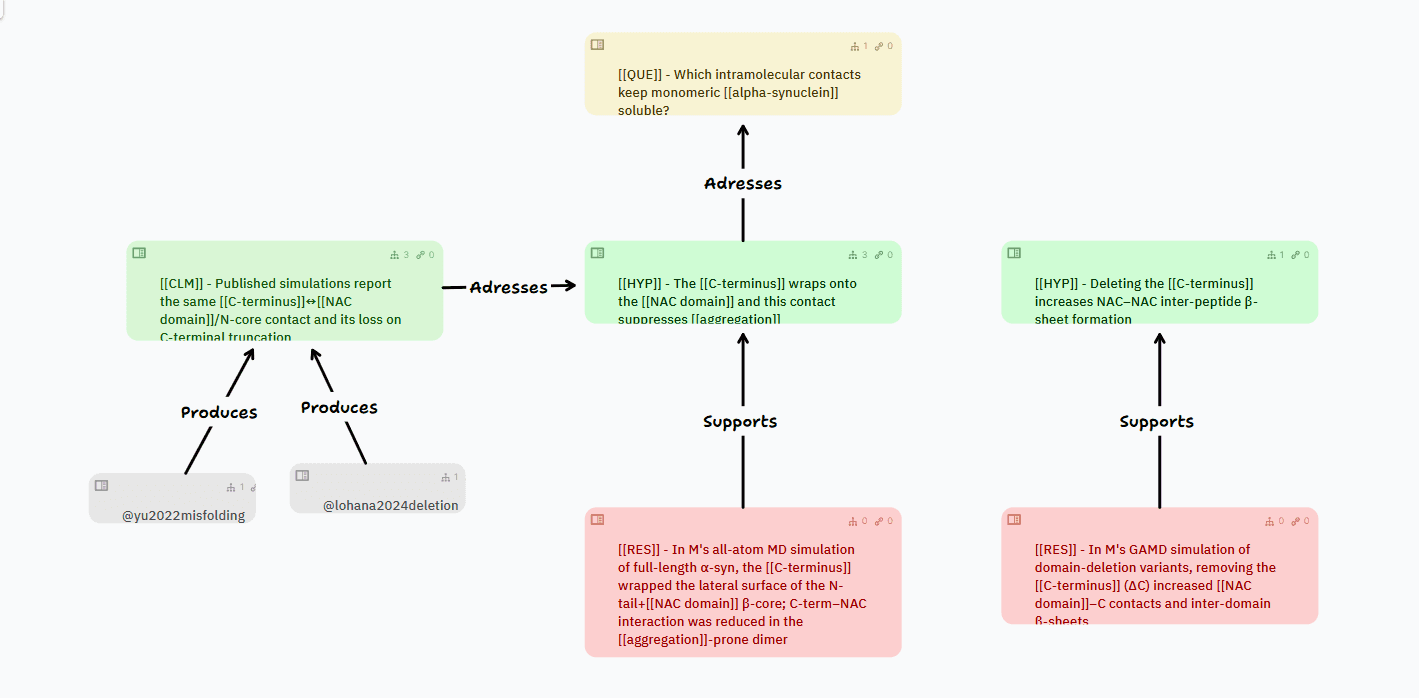
A canvas describing a series of simulations
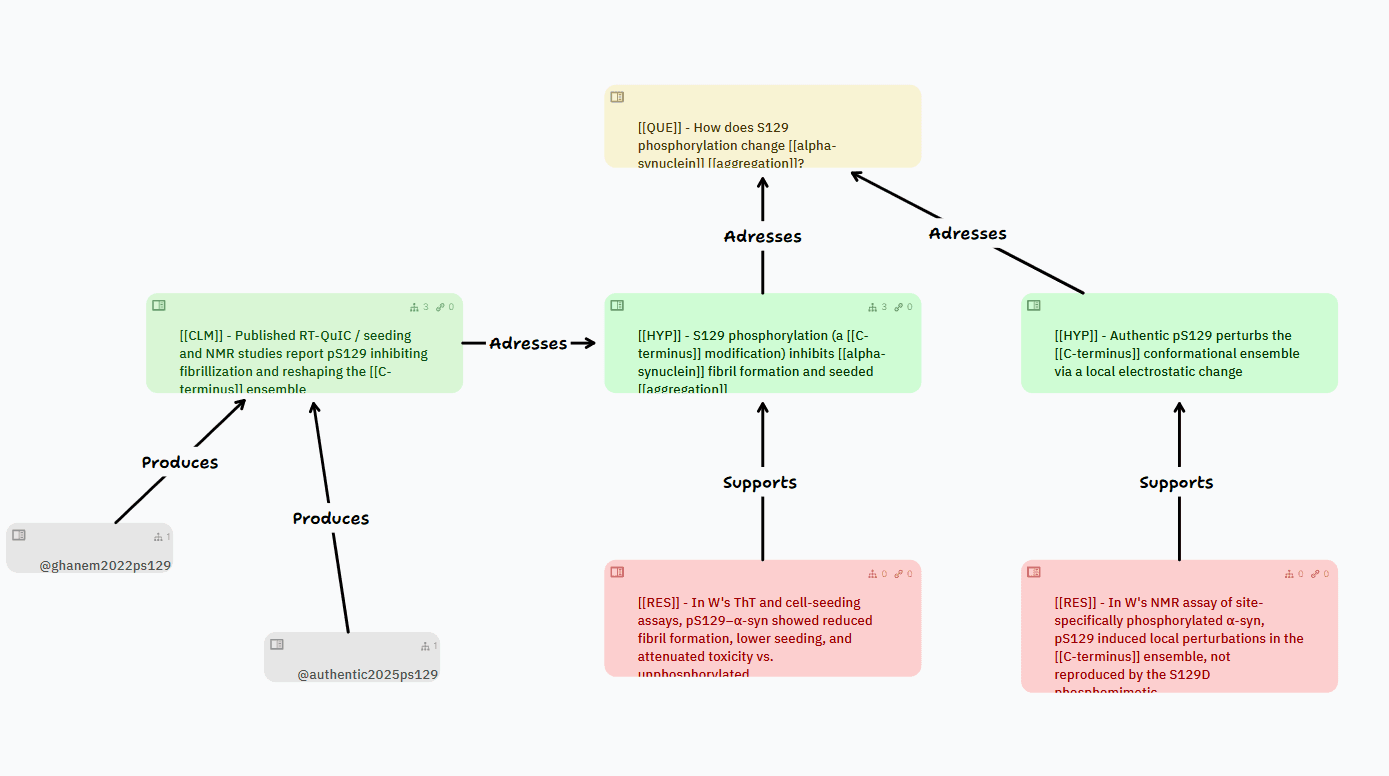
A canvas describing a wet lab experiment
Both canvases describe different results involving the same region, the C-terminus, and its effect on misfolding.
Now both of these researchers have a reason to be interested in the C-terminus, and they might run a query asking “Which hypotheses mention this region, and which methods were used to investigate each hypothesis?”
In the querybuilder’s language, that query would look like this:
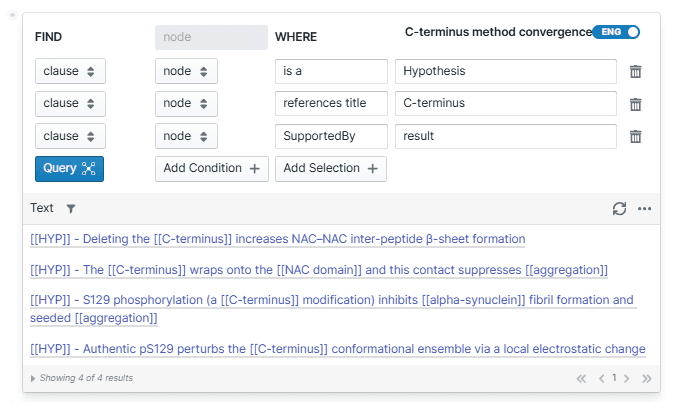
A query targeting hypotheses involving the C-terminus region
In this example, the lab has used the Roam Research convention of using [[wikilinks]] to automatically create pages aggregating references to terms of interest. Seeing [[C-terminus]] and [[aggregation]] in such proximity might prompt the wet lab experimentalist in the lab group to pose a new Question: “Does the C-terminal modification (pS129) act on the same soluble-state brake that the simulations identified?”
That question might motivate the creation of a new Hypothesis and a new Issue: an opportunity for collaboration between the in vitro and in silico researchers in the lab.
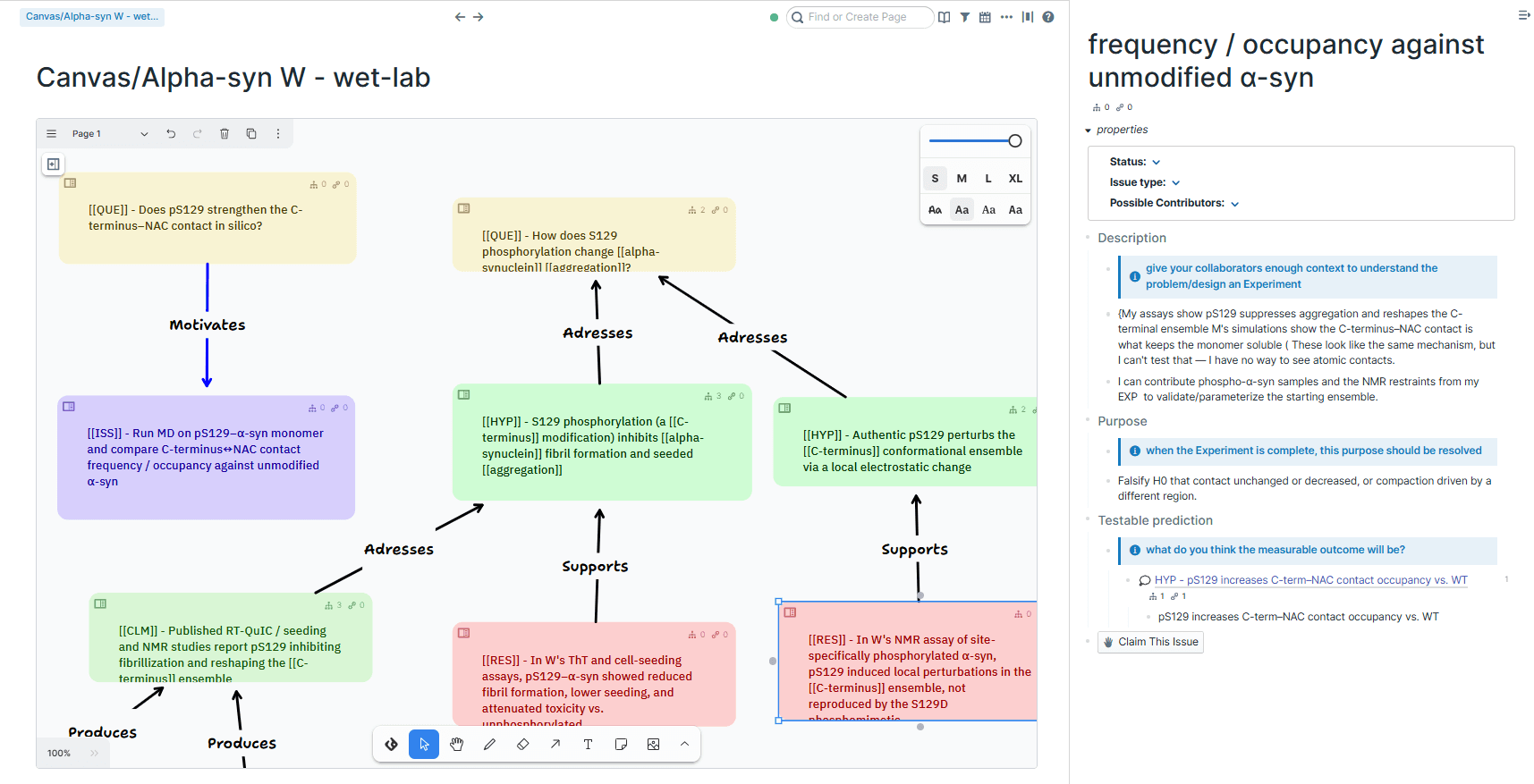
An Issue created by an experimentalist requesting a simulation that could inform several projects
Well-formed queries surface salient information for others in a shared knowledge base, as well as for future versions of yourself.